
How to Post Your Event on Facebook: A Tech Reader’s Guide
Clear, practical instructions for posting events on Facebook, with a tech-focused take on tools, privacy, and best practices for visibility.

For tech readers, posting an event on Facebook is more than a click. The process blends account settings, audience controls, and calendar integration. This guide offers a practical, step-by-step approach you can reuse for any event, large or small.
You’ll learn where to post, how to tailor details for clarity, and how to manage visibility without overexposing your data. The goal is a reliable listing that attracts the right attendees while respecting privacy and platform limits.
Each paragraph below builds toward a repeatable workflow you can apply to Rochdale-specific events or broader campaigns, with real-world tips for accuracy and efficiency.
- Posting an event on Facebook requires clear setup, precise details, and audience-aware visibility. Start by creating the event with accurate time, location, and privacy settings.
- Tailor the description for quick understanding, add accessible visuals, and plan smart sharing across groups and pages to widen reach without noise.
- Track responses in the dashboard, update content as needed, and avoid overposting or rushed edits that confuse attendees.
Basics and setup
Create or access event
Begin by navigating to the events section from your news feed or profile. Choose create event, then select online or in-person as the event type. Fill in essential details: title, date, time, and location. This foundation keeps later updates consistent across audiences. L1: post your event in Rochdale
- Open Facebook Events from your menu
- Click Create Event and choose Online or In-Person
- Enter title, date, time, and location
- Publish and review visual details
- Verify time zone
- Add a clear event name
- Include a map or venue info
- Set privacy to your preference
- Choose a recurring option if needed
- Verify time zone
- Add a clear event name
- Include a map or venue info
- Set privacy to your preference
- Choose a recurring option if needed
Audience and privacy
Decide who should see the event by selecting audiences such as friends, groups, or public. Privacy choices affect who can find the event in search and on timelines. Consider disabling invites from unknown profiles if you want a tighter attendee list.
If you keep it public, prepare a concise description and include tags to improve discoverability. For private layouts, focus on a trusted circle and limit sharing permissions. Review the audience settings before publishing.
- Public vs private considerations
- Search discoverability
- Sharing controls
- Review before publishing
How to tailor details for clarity
Clear title and description
The title should reflect the event’s purpose and date. Write a short description that answers who, what, where, and when in 2–3 sentences. Avoid jargon and keep the tone consistent with your brand. L2: rochdalenow.co.uk
Use bullet points for key items such as agenda, speaker names, and registration links if applicable. This helps readers quickly grasp what to expect and reduces back-and-forth questions.
- Concise, informative title
- Plain-language description
- Agenda highlights
- Registration or RSVP link
Visuals and accessibility
Add a cover image with strong contrast and readable text to improve click-through. Include alternative text for accessibility so screen readers describe the image. Keep branding subtle and avoid clutter.
If multiple visuals exist, select one primary photo and consider a secondary image for updates. Visual consistency helps audiences recognize the event across feeds.
- Strong cover image
- Accessible alt text
- Brand-consistent visuals
- Alternate image for updates
Getting visibility
Sharing tactics
Post the event in relevant groups or partner pages, and invite colleagues who can amplify the reach. Use a brief, value-focused caption when sharing beyond your profile. Regular reminders as the event approaches can boost attendance without spamming. L3: get your business listed in Rochdale
Monitor interactions and adjust timing to align with peak activity windows. Avoid overposting in a short span to maintain trust with your audience.
- Share in relevant groups
- Invite collaborators
- Value-focused captions
- Timed reminders
| Method | Pros | Cons |
|---|---|---|
| Public event listing | Easier discovery | Less privacy control |
| Private event listing | Stronger privacy | Limited reach |
| Group-specific post | Targeted audience | Requires management |
Tracking and updates
Use the event dashboard to monitor RSVPs and respond to questions quickly. Update the event with new speakers, agenda tweaks, or location changes to keep information current. Regular, factual updates reduce confusion and improve turnout.
Consider linking to external resources only if they enhance planning, such as registration pages or venue maps. Keep the core event content on Facebook to preserve consistency.
- Monitor RSVPs
- Post timely updates
- Link to useful resources
- Maintain consistency
Security starts with who can post in the event and who can see guest lists.
Security considerations for events
Access controls and privacy settings
When you create an event, set clear privacy controls so attendees can find it without exposing sensitive details. Choose between public, private, or invite-only options based on your audience and risk tolerance. Test visibility by logging out or using a burner account to confirm what outsiders see. L4: post a job ad in Rochdale
- Define who can view the event and who can join
- Assign moderator roles and a primary contact
- Test visibility from an outsider perspective
- Prepare a quick response plan for issues
Security starts with who can post in the event and who can see guest lists. Limit roles to organizers and trusted moderators to reduce spam or unwanted edits. Regularly review attendee permissions as the event evolves.
Coordinate with your team on who handles questions, tickets, or moderation during the event. Establish a quick escalation path for reports or inappropriate content to keep the experience safe for attendees. Use single sign-on where available to reduce credential sharing.
- Set privacy level before inviting guests
- Limit posting rights to organizers
- Review guest list access periodically
- Establish a quick moderation path
Integrations and tools
Third-party tools and automation
Integrations can streamline how you post updates and manage RSVPs, but they add risk if permissions are too broad. Review each app’s scope before granting access and prefer official integrations from trusted vendors. Disconnect any tool you no longer use to reduce data exposure. obituaries in Rochdale
Automation helps keep information fresh, yet it can duplicate messages or miss context during edits. Use scheduling features to coordinate reminders and follow-ups, then verify timing across time zones. Build a fallback plan for manual posts if automation fails.
Experiment with analytics and event insights to understand attendee behavior, without overreliance on a single metric. Track RSVP trends, engagement on updates, and peak interaction times to adjust content strategy. Always respect user privacy when exporting data to external dashboards.
- Choose official integrations
- Limit granted permissions
- Test automation before going live
- Monitor data access
Mobile posting best practices
Optimized content for phones
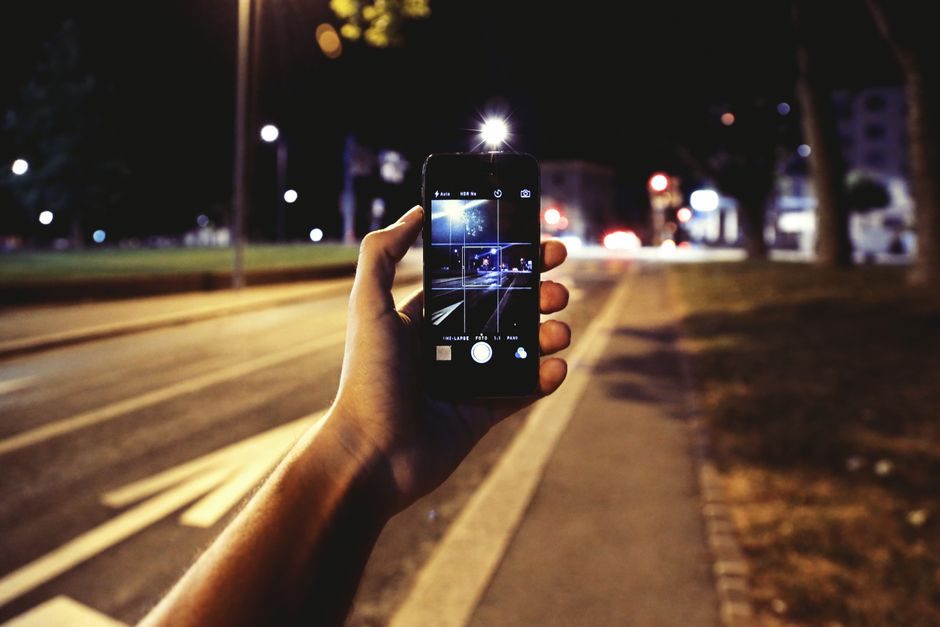
Most users view events on phones, so keep headlines brief and descriptions scannable. Use short paragraphs, bullet highlights, and visually distinct sections to aid quick reading. Preview how the post looks on a small screen before publishing.
Timing matters when posting from mobile. Schedule updates for when your audience is most active, and avoid posting during off-hours that reduce visibility. Use native keyboard features to shorten URLs and maintain readable text.
Offline workarounds help when connectivity is unreliable. Draft posts in a notes app, then paste when you have a stable connection. Enable drafts auto-save if your platform supports it to prevent lost edits.
- Keep headlines concise
- Include bullet highlights
- Preview on mobile screen
- Schedule for peak times
Common mistakes and fixes
Typical posting pitfalls
Overloading a post with details can confuse readers and reduce action. Prioritize essential information like date, time, venue, and a clear call to action. Use separate posts for updates to avoid information overload.
- ☐ Define core message
- ☐ Add event basics
- ☐ Pin important update
- ☐ Monitor replies and adjust
Inconsistent updates undermine credibility. Maintain a single thread of communication and reference previous messages rather than repeating them. When details change, pin the latest version and summarize changes.
Neglecting accessibility can exclude some users. Add simple alt text to images, provide long descriptions where possible, and keep color contrasts high for readability. Accessibility boosts engagement and reduces confusion.
- Limit the core post to essentials
- Keep communications in a single thread
- Enhance accessibility of visuals
- Use pinned updates for changes
Frequently asked questions
Can I post an event as a personal profile or must it be a page?Both options can work, but using a page often provides better control over branding, messaging, and analytics. Personal profiles can be limited by platform rules and may expose your private activity. Review your goal, audience, and moderation needs before choosing.
What privacy level should I choose for a public event?Public events maximize reach and discovery but expose more details to everyone. If the event includes sensitive or restricted content, set it to a more private option and carefully manage who can see guest lists and updates.
How do I keep attendees engaged after posting?Post a clear schedule, reminders, and actionable next steps. Respond promptly to questions, bump important updates, and consider a pinned post with a concise agenda. Short, consistent posts maintain momentum without overwhelming readers.
What risks should I watch for when linking tools?Tools can access attendee data, posts, and RSVPs. Limit permissions to what is necessary, revoke access after the event, and regularly review connected apps for unusual activity.
Practical next steps for event posting
Review your event’s visibility: decide who can see it and who can join, and adjust settings before inviting attendees.
Take a test run from a guest perspective, verify post formatting on mobile, and prepare a short sequence of updates so you don’t flood the feed.
Add Crypto News as a preferred source on Google


